oper8r Docs
Spreadsheet
Spreadsheet mode lets you upload and work with CSV, XLS, XLSX, XLSM and ODS files using a full Excel-like interface powered by oper8r's AI. Use it for RFPs, security questionnaires, vendor assessments, and any tabular data that benefits from AI-assisted processing.
oper8r automatically identifies question and answer columns in your uploaded file - no manual column mapping required. By scanning the sheet at run time, oper8r intelligently determines which columns contain questions, where answers should go and what format answers should be. This works across different RFP formats and naming conventions, so you can upload any questionnaire and start processing immediately.
Getting Started
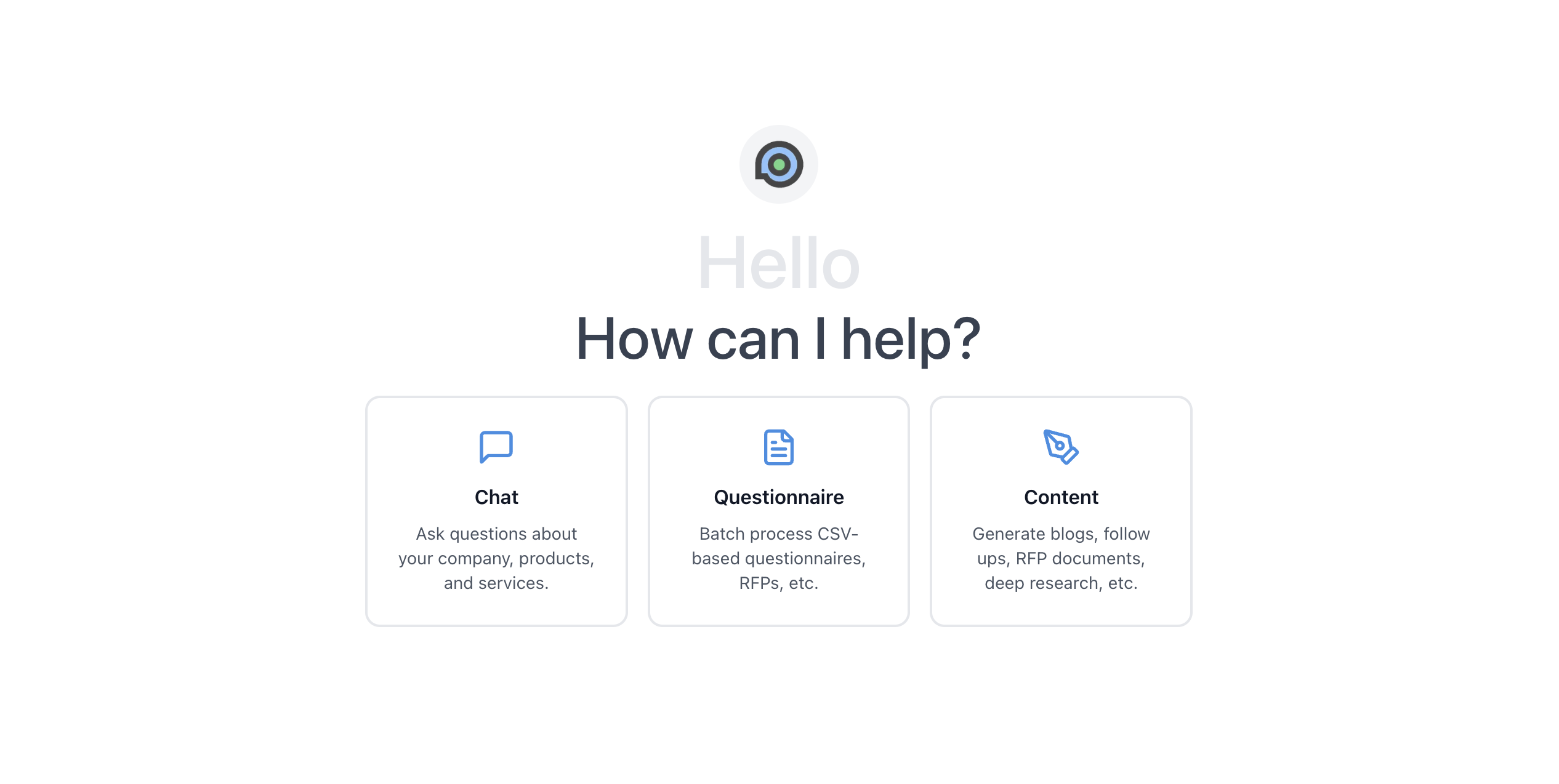
To create a new spreadsheet, click the Spreadsheet option on the Agent home page.
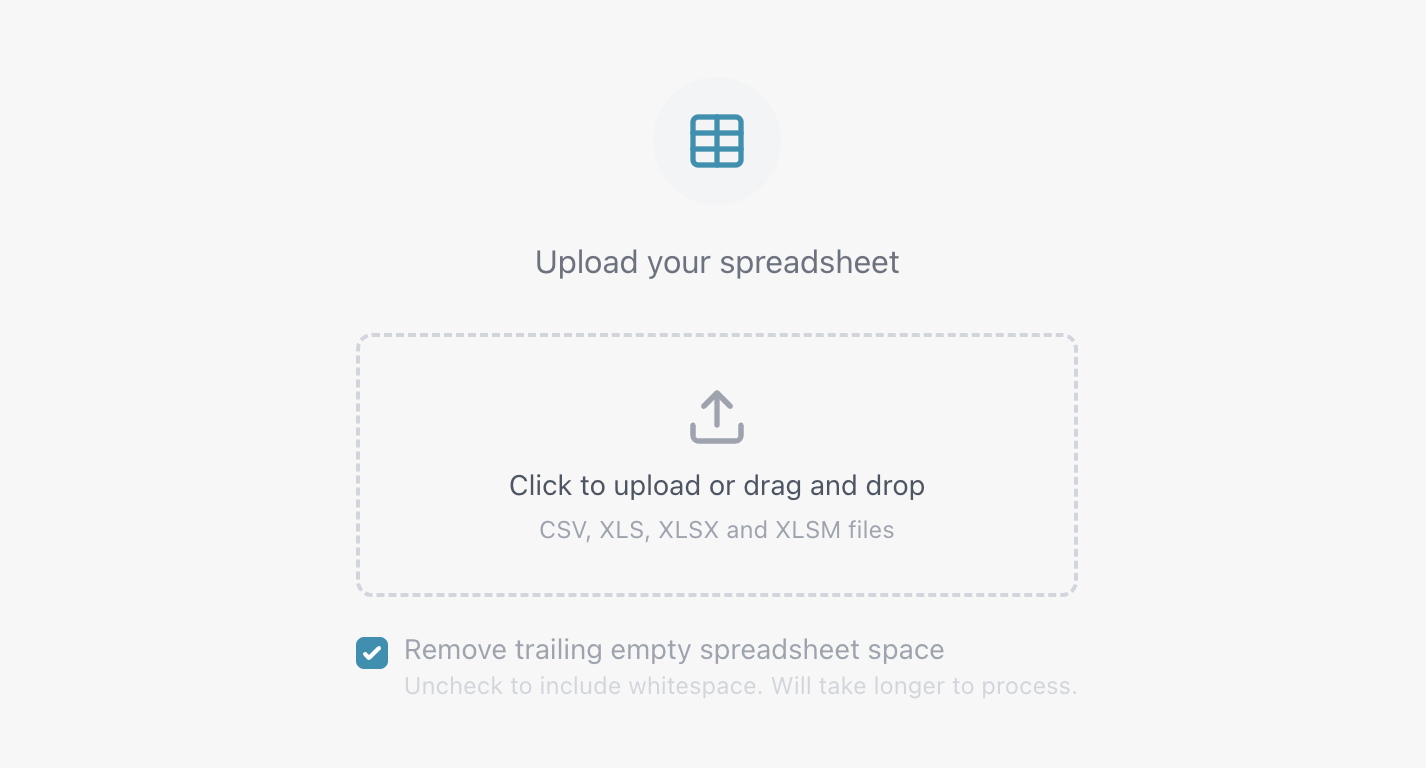
Upload Your File
Upload an CSV, XLS, XLSX, XLSM or ODS file. oper8r supports these formats and will parse multi-sheet workbooks automatically.
To work with DOC, DOCX, MD, MDX, ODT, PDF or TXT files, use a Document.
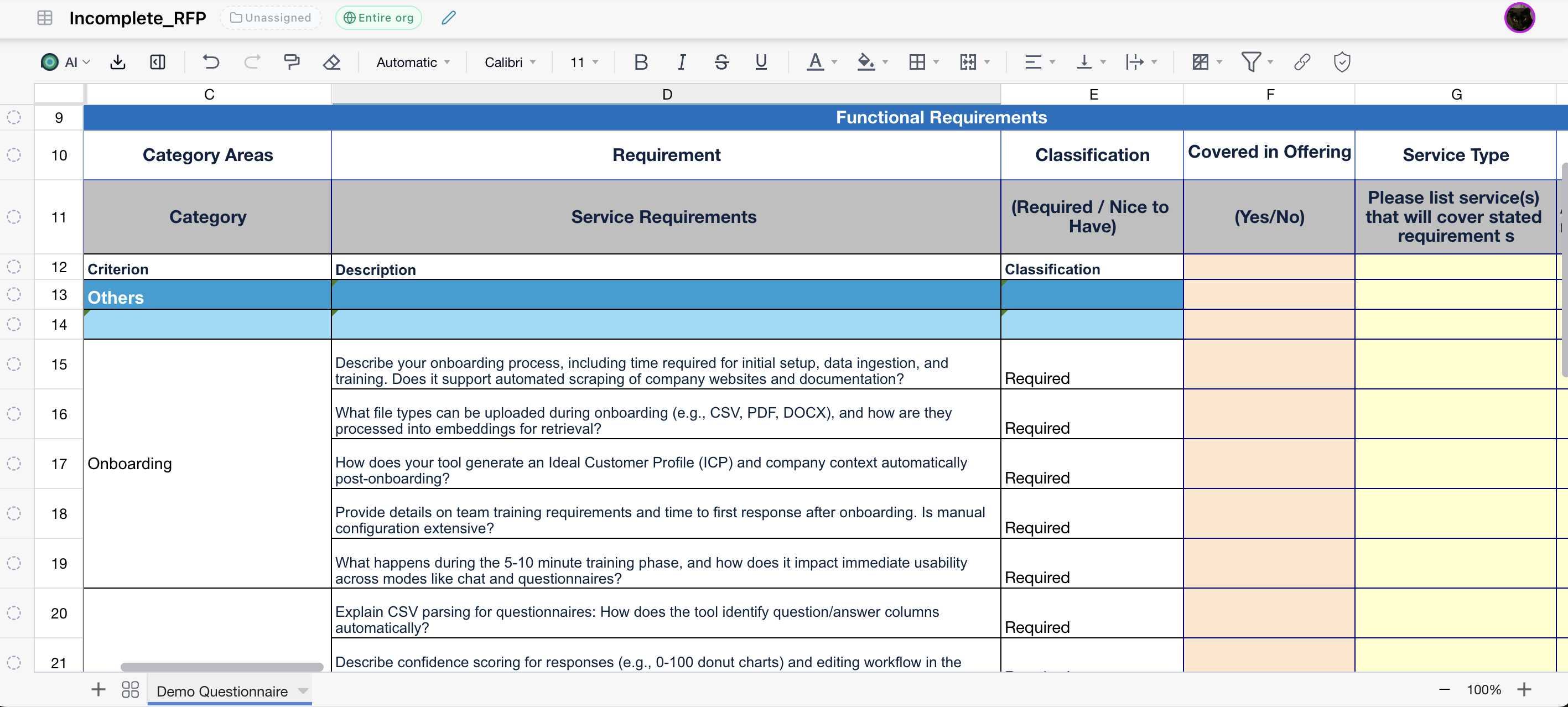
The Spreadsheet Editor
oper8r displays your data in a full-featured spreadsheet editor. You can edit cells directly, resize columns, and work with the data as you would in Excel or Google Sheets.
Multi-Sheet Workbooks
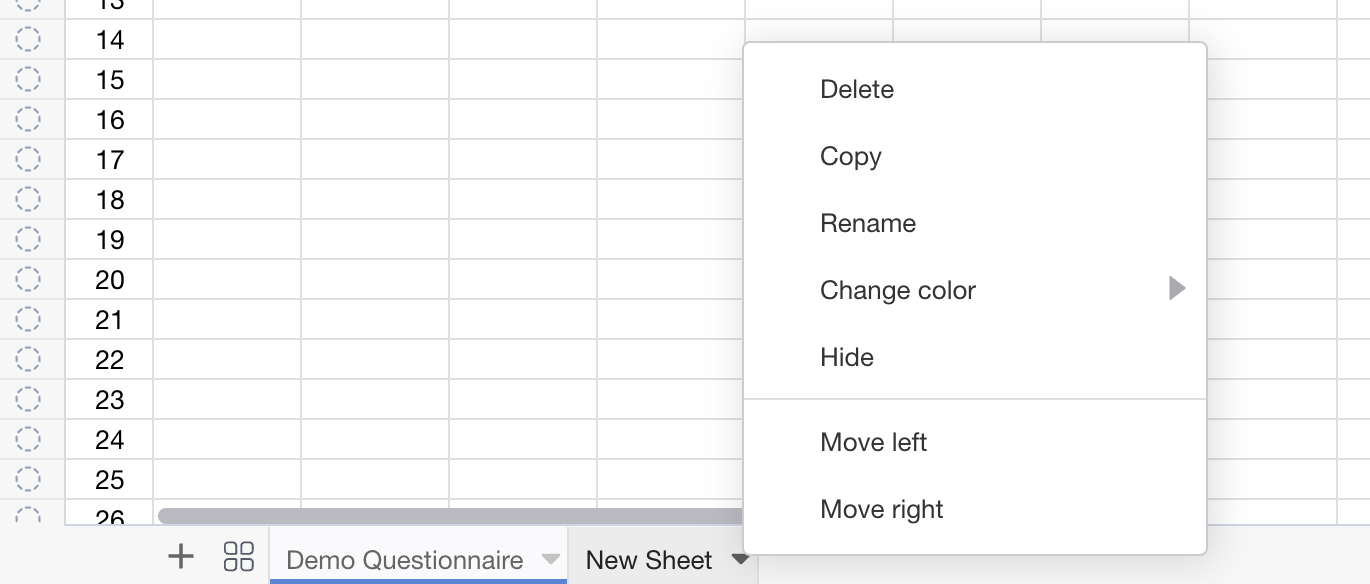
If your uploaded file contains multiple sheets, oper8r preserves them all:
- Switch between sheets using the sheet tabs at the bottom of the grid
- Rename sheets by double-clicking the tab
- Reorder sheets by dragging tabs
- Color-code sheet tabs for organization
Editing Cells
Click into any cell to edit it. Changes are saved automatically via real-time sync. Your manual edits are always preserved - oper8r will avoid overwriting content in most cases, unless instructed to do so.
Processing Rows with oper8r
Assigning Rows to oper8r
Select one or more rows and click Assign to oper8r to queue them for AI processing. To assign rows to oper8r, highlight the rows you want oper8r to process, then either right click or click the oper8r AI dropdown.
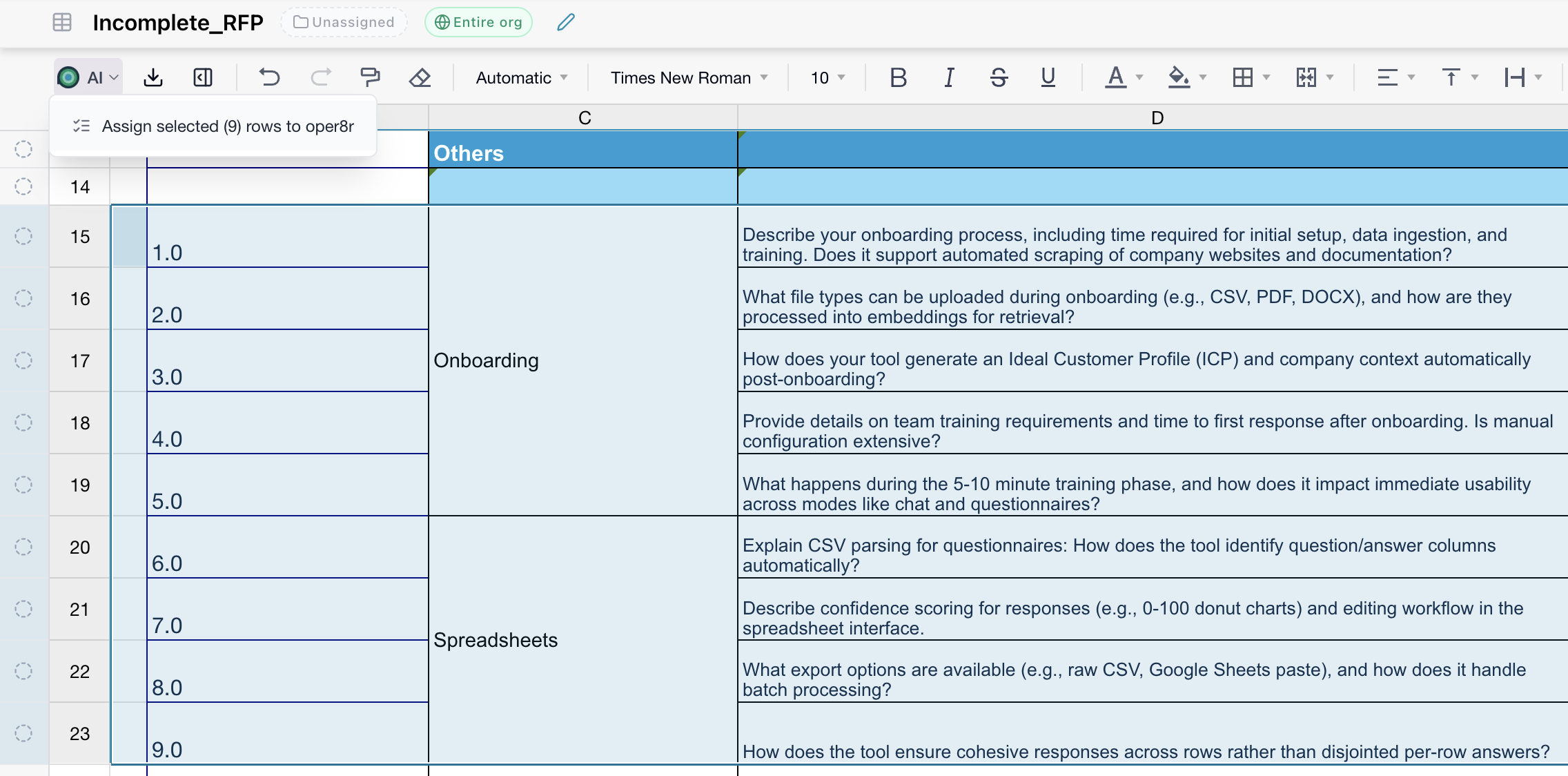
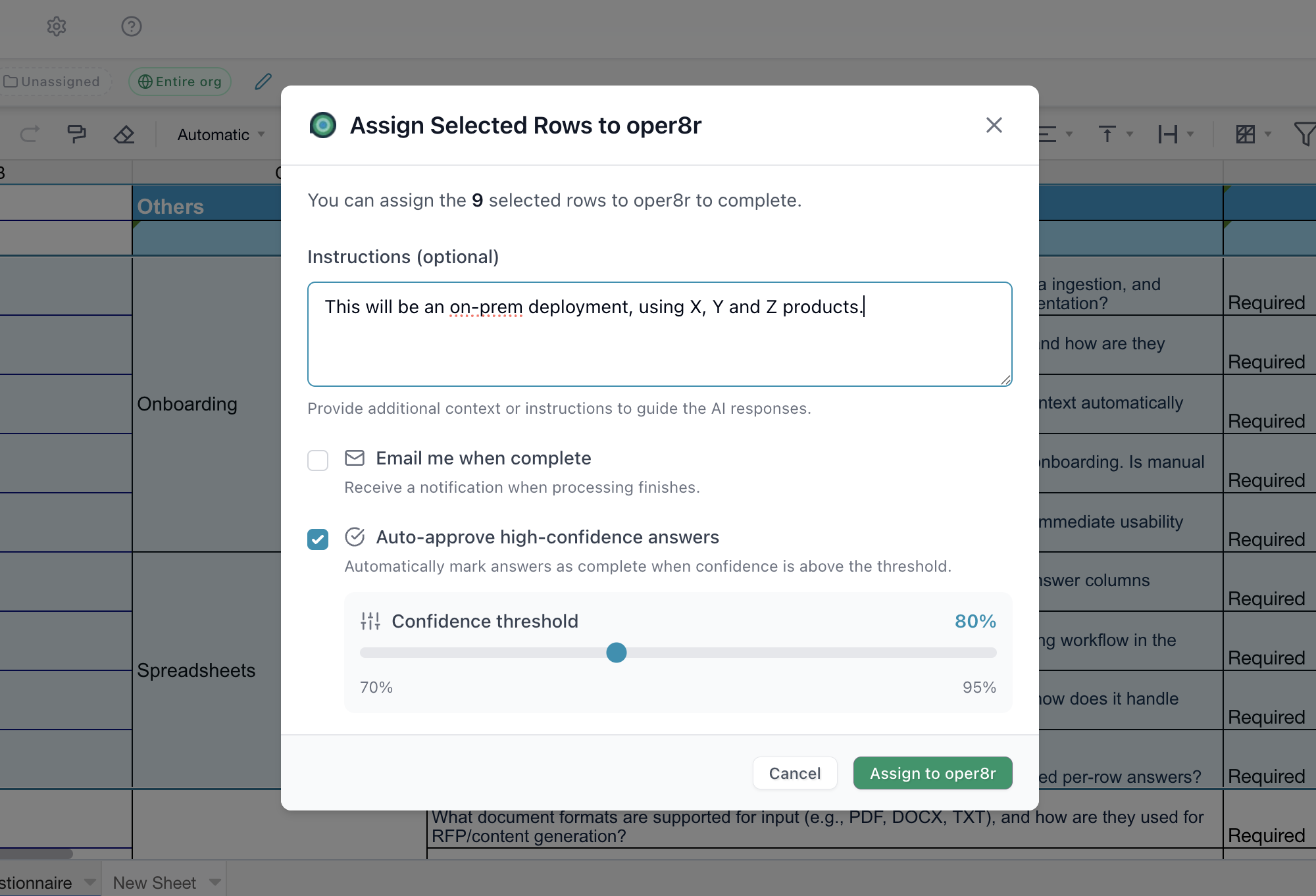
The workflow is the same whether you select a single row or hundreds - select your rows, configure options, and let oper8r go to work. Before processing begins, you can:
- Provide custom instructions to guide how oper8r approaches the responses
- Enable email notification to be alerted when processing completes
- Set an auto-approve threshold - responses with confidence scores at or above this threshold are automatically approved, saving you review time on high-confidence answers
oper8r generates a draft response for each question by pulling the most relevant information from your Knowledge Library. Even if the wording of a question differs from what's in your knowledge base, oper8r uses hybrid keyword and semantic matching to find the best content.
Library Auto-Fill & Answer Mapping
With oper8r, there's no question or answer mapping process. You select the rows you want oper8r to process, and oper8r will gather the question context required from the spreadsheet. For answer formatting, oper8r will also gather context from the spreadsheet at run time to determine where the answer should go, and what format it should be in (text and/or dropdown, etc.).
When knowledge is imported into oper8r's Knowledge Library, oper8r will use the most relevant knowledge items to auto-fill answers. For each parsed question, oper8r finds and analyzes many knowledge items to find best matching content from your knowledge base and drafts a unique response. oper8r is not "copy+pasting" answers; it will adapt past information to the current scenario, with confidence scores. For example, you can tell oper8r to focus on certain products or implementation types in the responses.
This works even when the RFP uses different wording than your stored content - oper8r's semantic search identifies the most relevant knowledge items regardless of phrasing.
Confidence Scores & Quality Checks
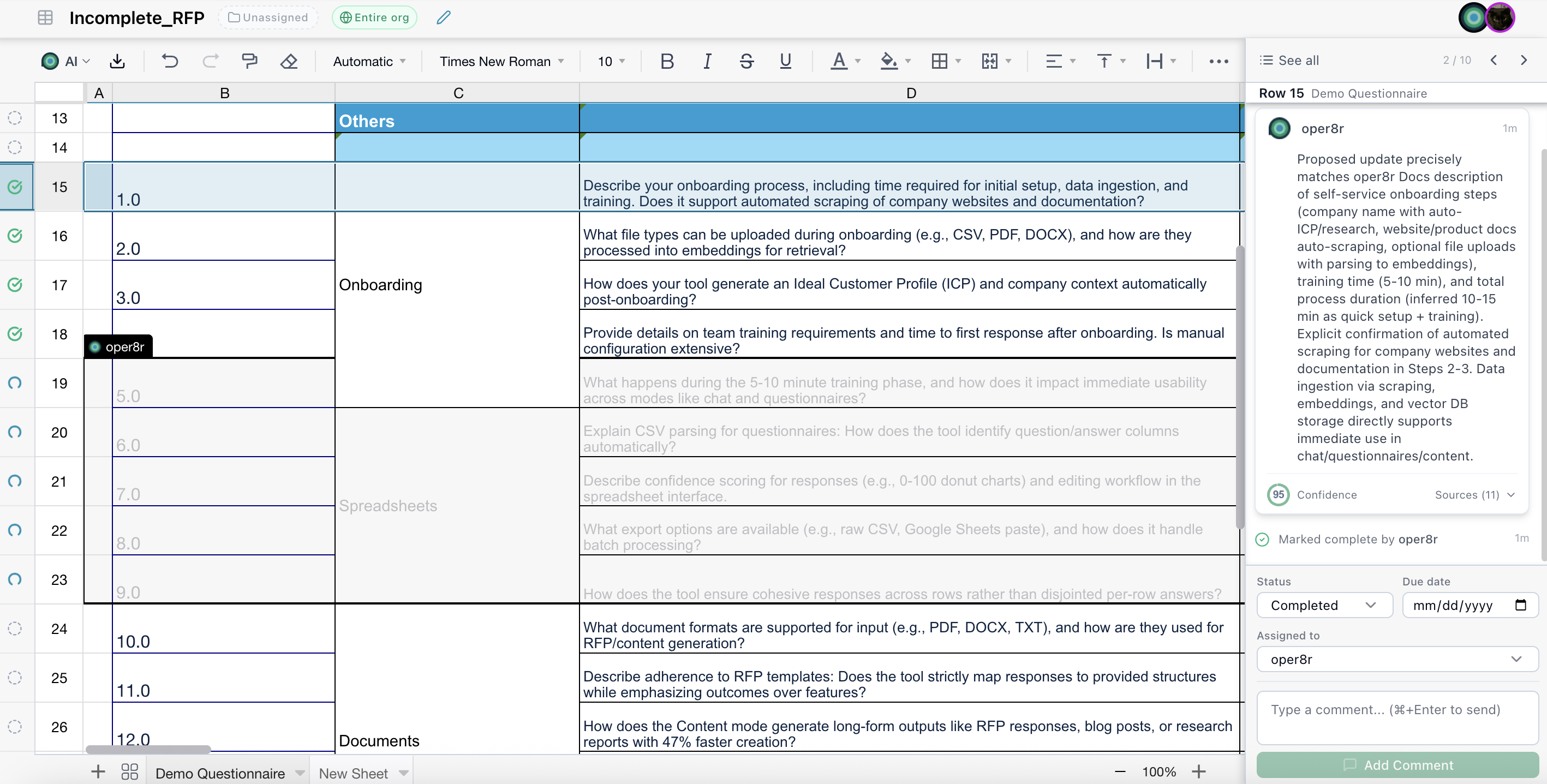
Each AI-generated answer includes a confidence score (0-100) displayed as a donut chart. This score reflects how well oper8r's response addresses the question based on the available knowledge base content.
oper8r also acts as a reviewer - checking each answer against the question and RFP requirements. It flags responses that may be missing part of the question or don't fully satisfy a stated requirement.
Source Citations
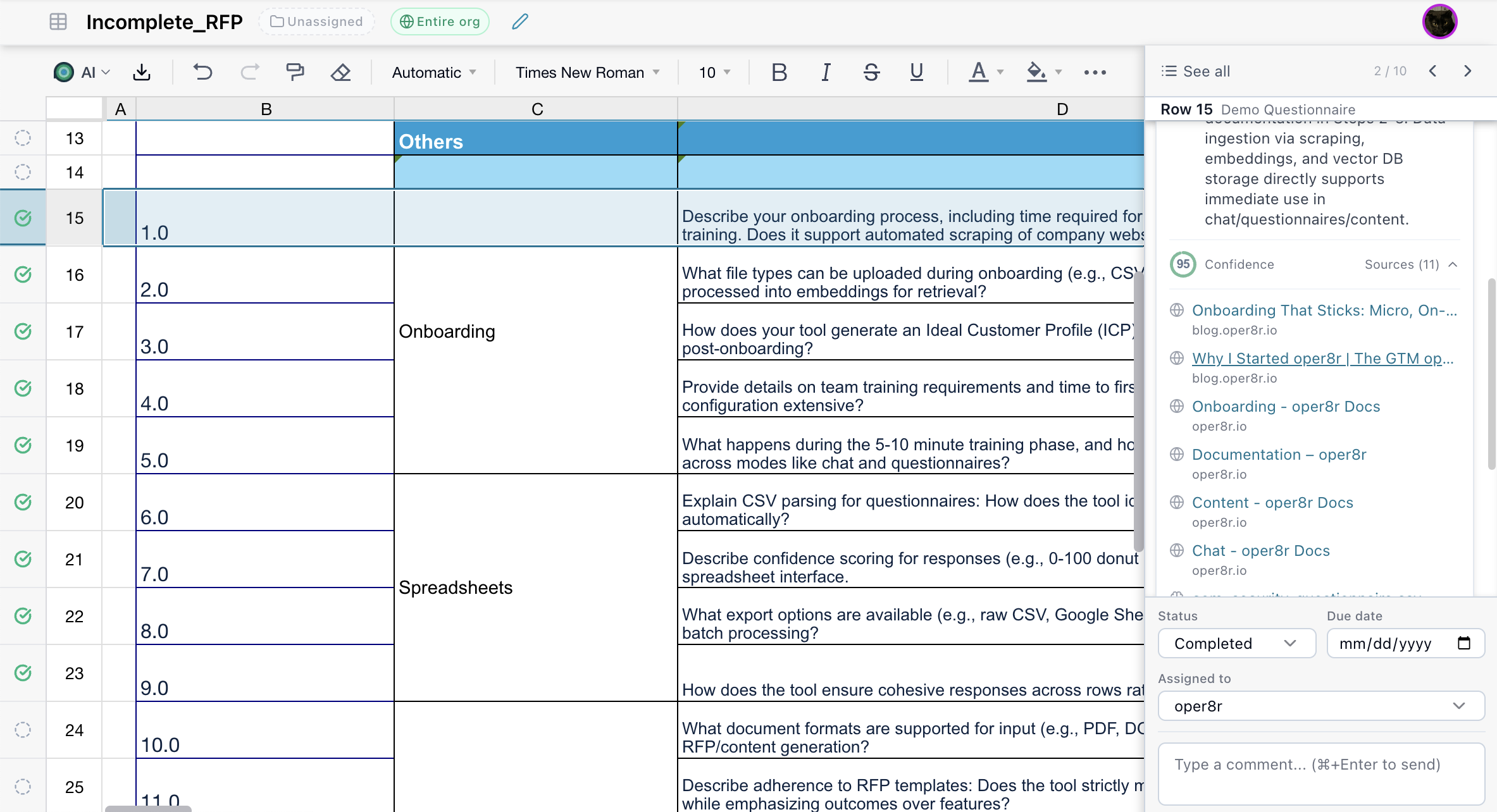
Click on any generated answer to see the sources oper8r used - including links to knowledge base items and reference materials. This makes it easy to verify and trace the origin of each response.
Style, Tone & Clarity
oper8r refines responses to ensure they are well-written and meet the client's requirements. By analyzing the RFP document and question set, oper8r identifies key themes the client emphasizes, then adapts the language of each answer to highlight those themes - ensuring responses directly address what the evaluator cares about.
Row Annotations & Tasks
Each row in your spreadsheet can have annotations - tasks, comments, and assignments - attached to it. This turns your spreadsheet into a full project management workspace where you can assign questions to team members, set deadlines, and track progress.
The rail on the left side of the grid shows visual indicators for each row's status:
- Green check - completed
- Comment bubble - has comments
- Warning indicator - action required
- Spinning indicator - AI is generating
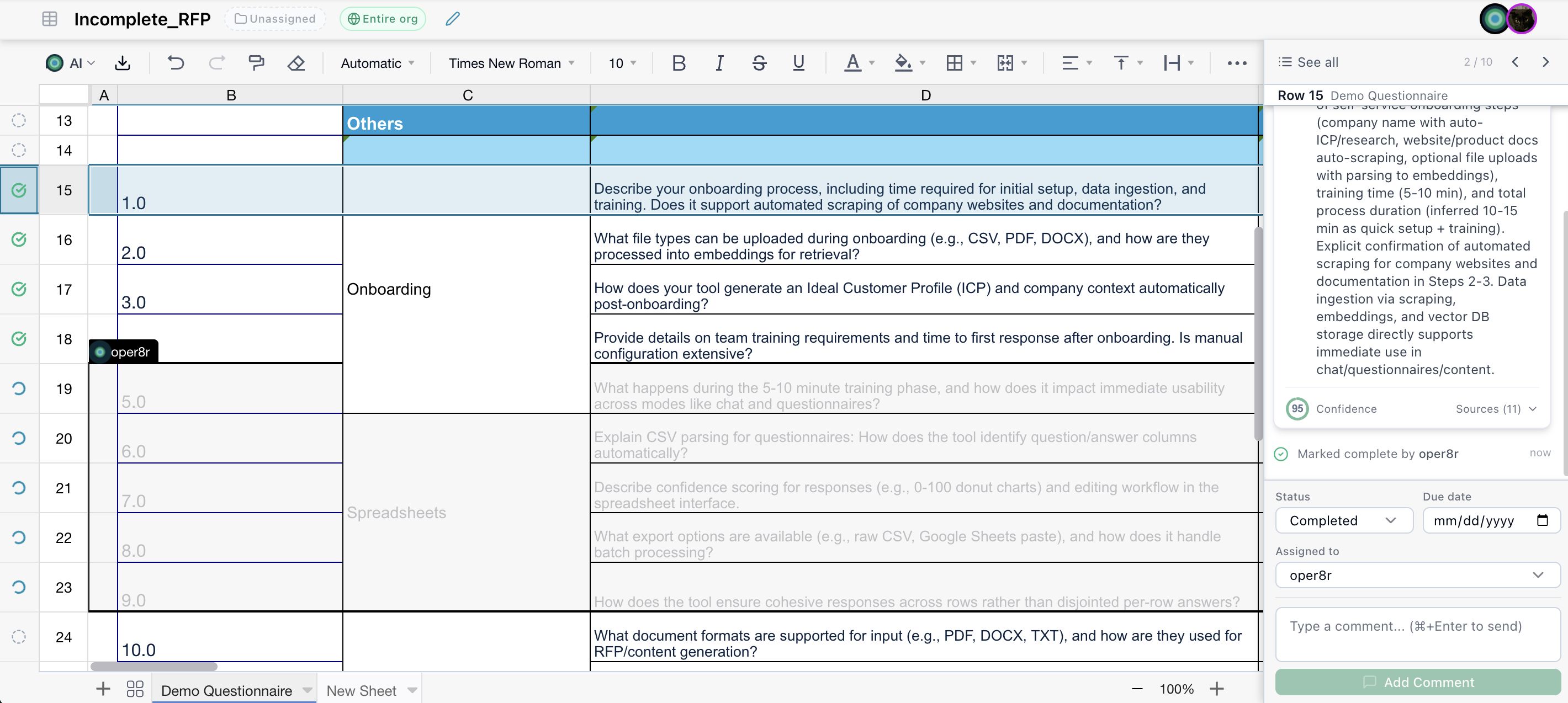
For full details on the task and annotation system, see Project Collaboration.
Real-Time Collaboration
Spreadsheet sessions support real-time collaborative editing. Multiple team members can work on the same spreadsheet simultaneously, with changes synced instantly. Everyone works off the same live document - no emailing spreadsheets back and forth.
For more on collaboration features, see Real-Time Collaboration.
Export
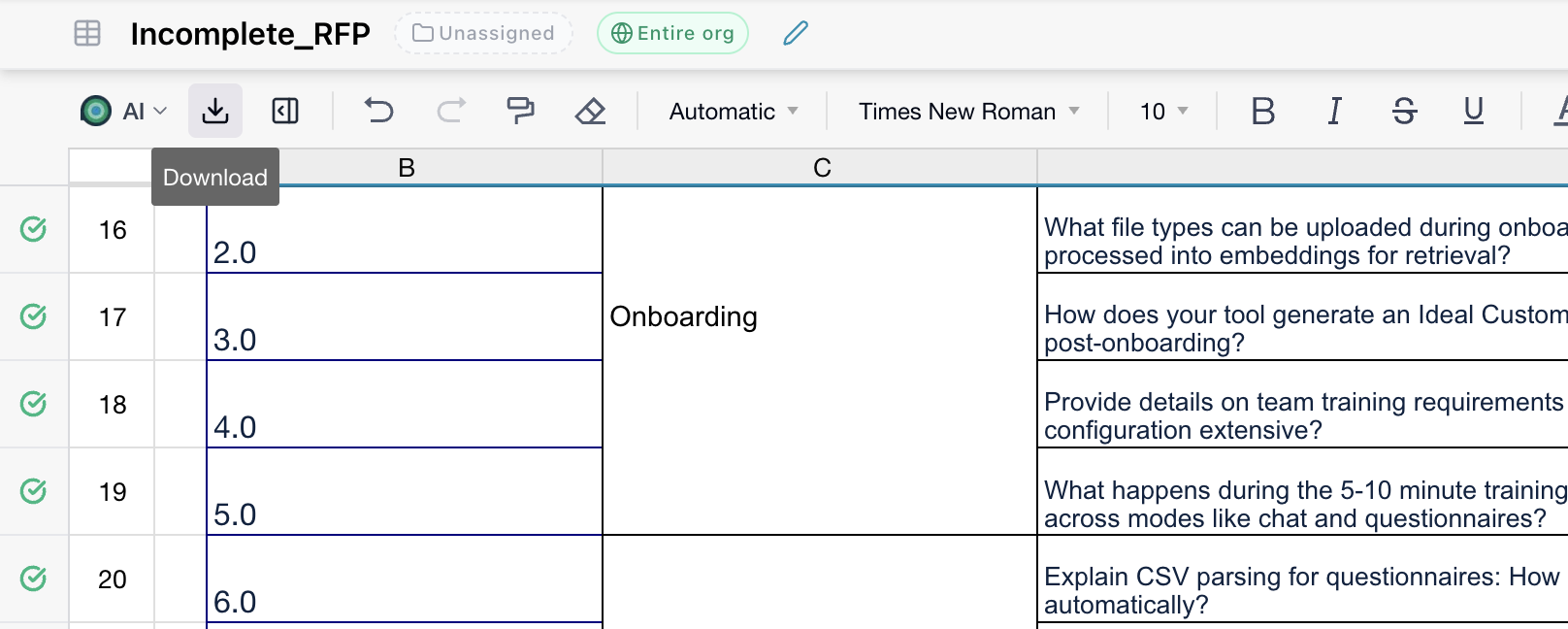
Click the export button to download your completed spreadsheet as a formatted Excel (.xlsx) file with all your data, styling and formatting preserved.
Just want to talk it out?
We'd be happy to help you get started. The best starting point is usually a live RFP, security questionnaire, or knowledge base that already costs the team time to search, verify, and reuse.