oper8r Docs
Document
Document mode is an AI-powered rich text editor for creating proposals, follow-ups, RFP documents, onboarding guides, and more. It combines a full-featured block editor with an embedded AI assistant for inline content generation and refinement.
Getting Started
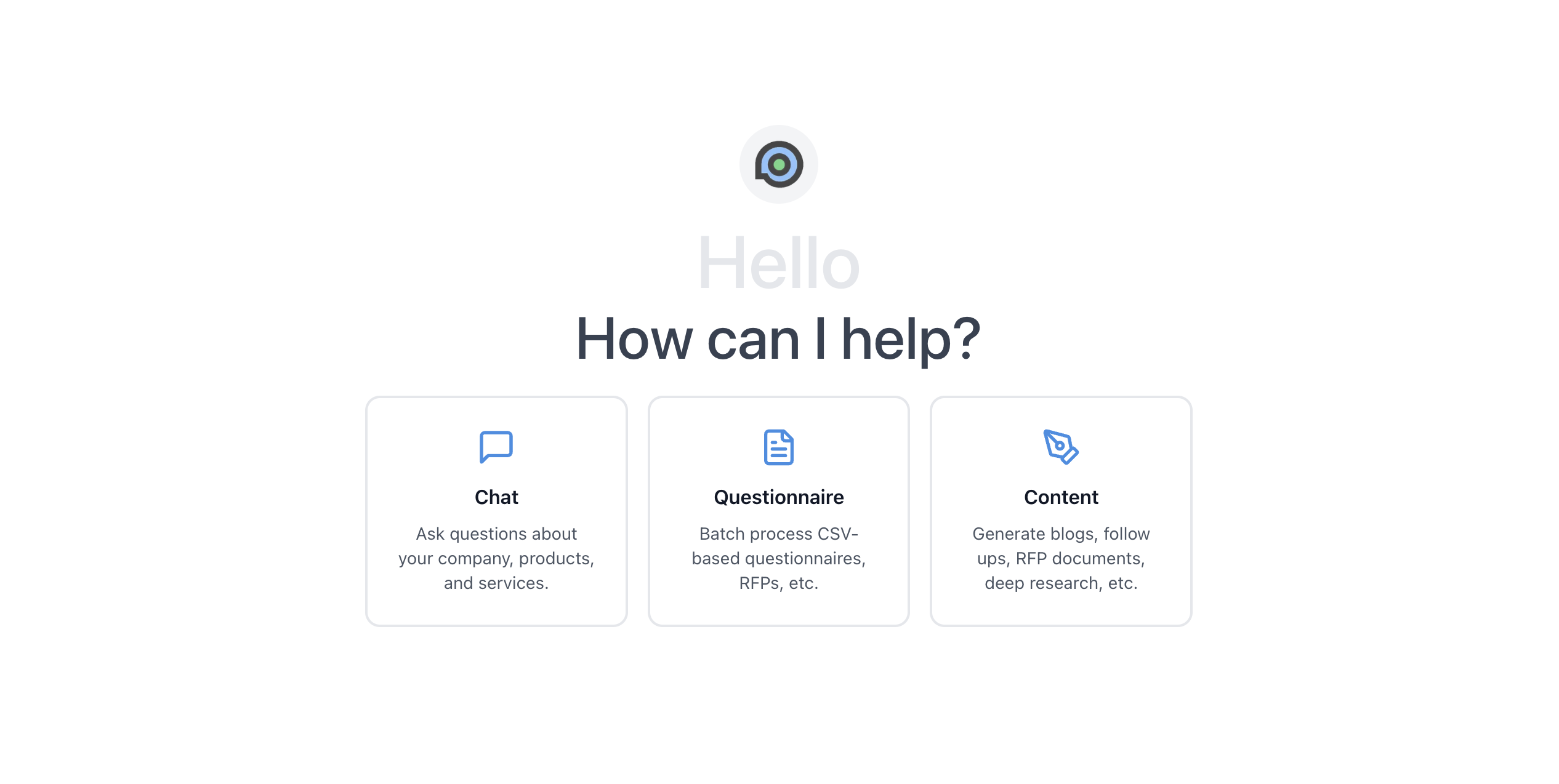
To create a new document, click the Document option on the Agent home page.
You can start with a blank document or upload an existing document for oper8r to analyze and work with. Supported file types include:
DOC, DOCX, MD, MDX, ODT, PDF or TXT.
To work with CSV, XLS, XLSX, XLSM or ODS files, use a Spreadsheet.
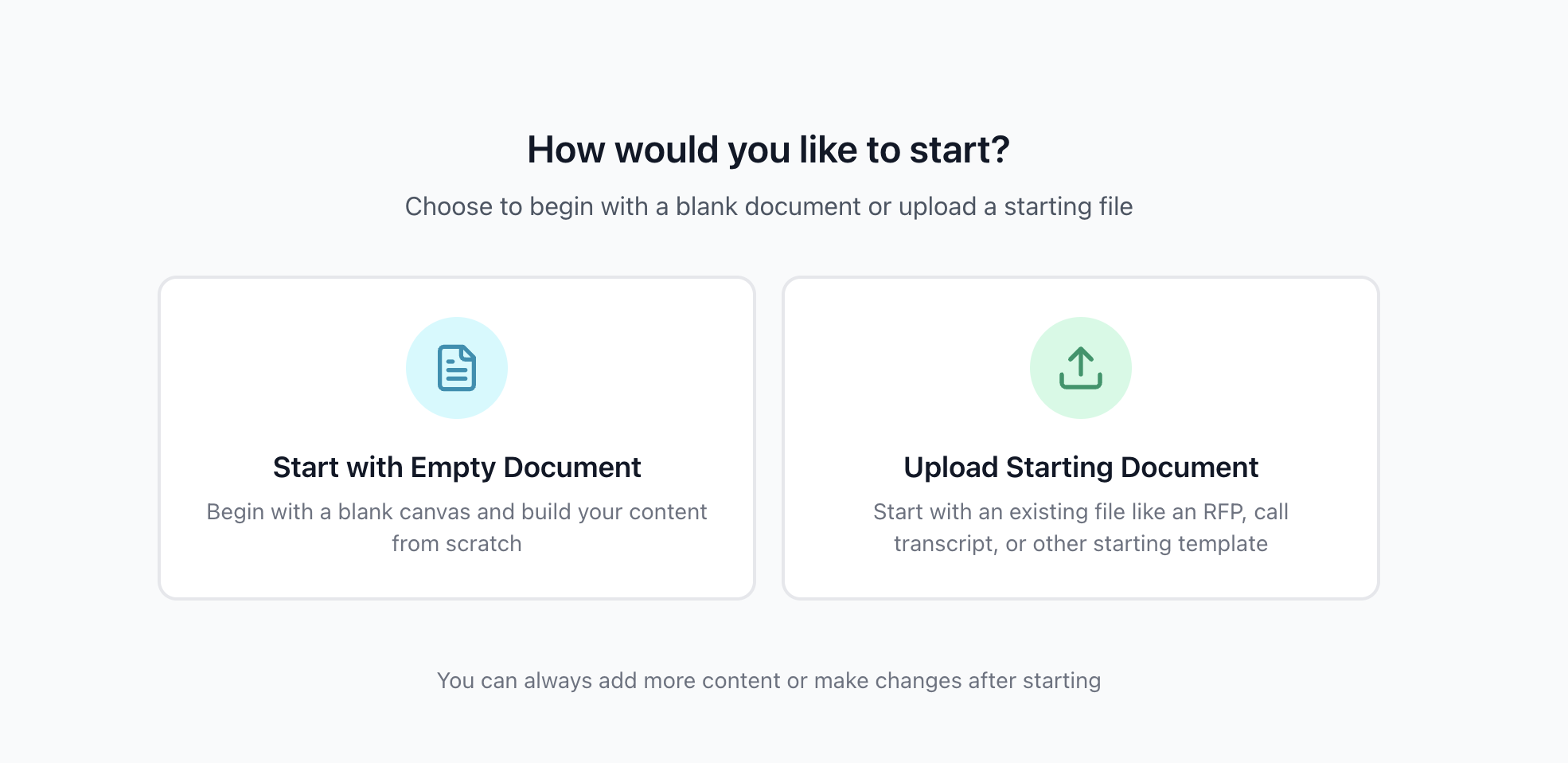
This is ideal for uploading RFP response documents, call transcripts, competitor materials, or any starting material you want oper8r to reference or build upon. Uploaded files are processed asynchronously - oper8r parses and converts the content for use as context during AI-generated content.
The Block Editor
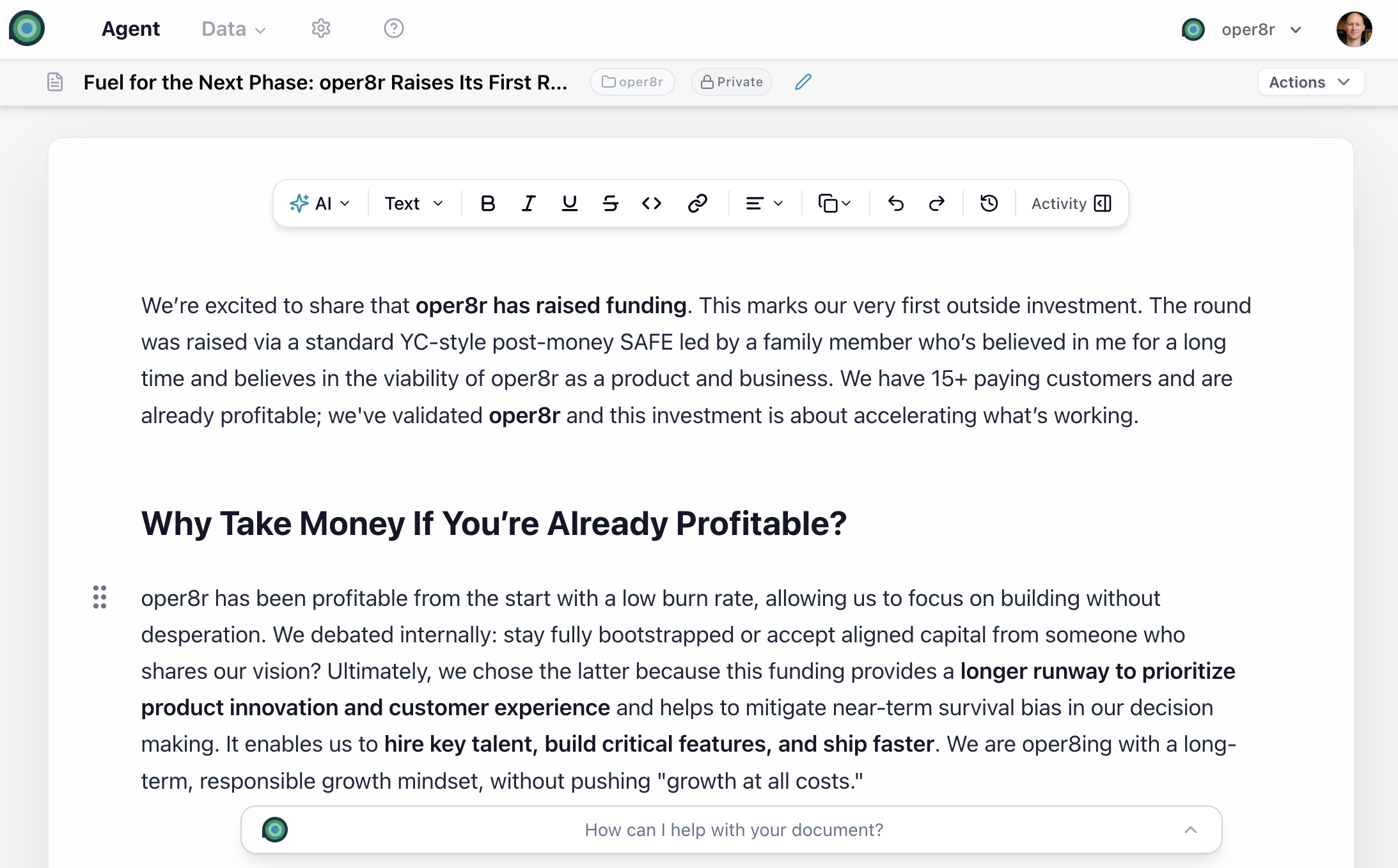
The document editor is a rich text editor with full formatting capabilities:
- Text formatting: Bold, italic, underline, strikethrough
- Structure: Headings (H1-H6), paragraphs, lists (ordered/unordered), blockquotes
- Rich content: Links, code blocks, tables, images
- Toolbar: Full formatting toolbar at the top for quick access to all options
- Auto-save: Content is saved automatically as you type
AI Chat Dock
On the right side of the editor, the AI Chat Dock provides an embedded assistant for content generation and refinement. This is where you configure settings, provide instructions, and see oper8r's responses.
Each turn takes roughly a minute. oper8r responds with:
- An agent message on the right side, sharing the status, thought process, and observations during generation
- The updated content in the rich text editor on the left side
You can then edit the content manually, or give further instructions to oper8r for additional refinement.
AI Chat Dock Settings
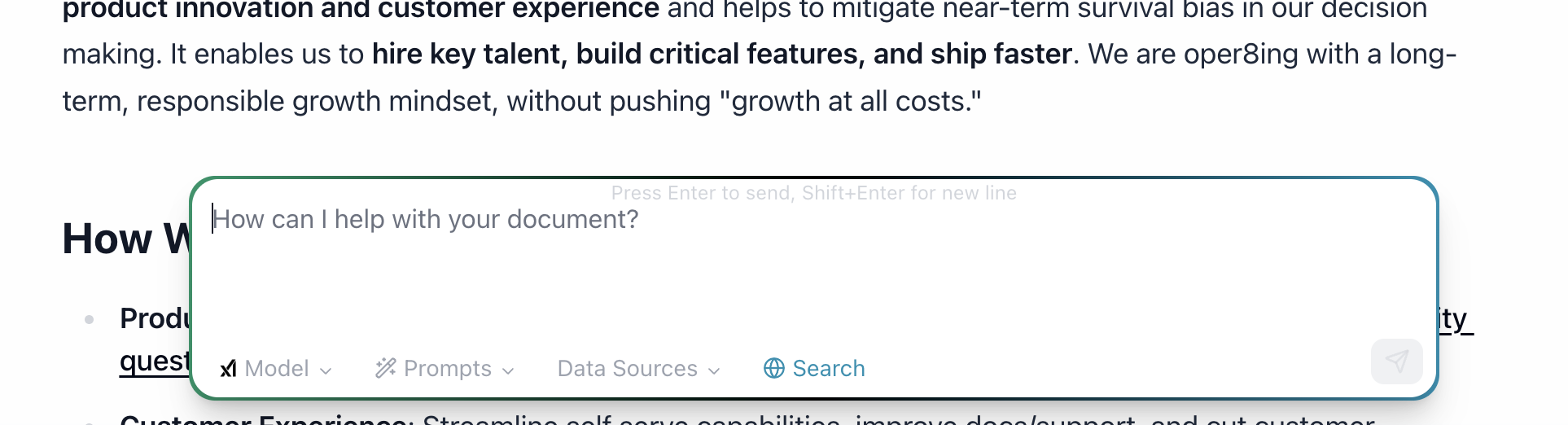
The AI Chat Dock includes four settings that control how oper8r generates content:
Model
Select the AI model used for document generation.
Saved Prompts
Click the Saved Prompts button to browse and apply reusable prompts from your prompt library. Prompts are organized into My Prompts and Organization Prompts. Selecting a prompt appends its content to your instructions.
For more on creating and managing prompts, see Saved Prompts.
Data Sources
Control which data sources oper8r draws on when generating document content:
- Website - your company website content
- Documentation - your product documentation site
- Knowledge Base - your curated Q&A content and uploaded files
- Competitors - competitive intelligence data
All sources are selected by default. See Context Layer for details on configuring your data sources.
Search
Toggle web search on or off. When enabled, oper8r searches the web for relevant results to supplement your data sources during content generation.
Automated First-Draft Generation
When you send instructions via the AI Chat Dock, oper8r generates content by pulling the most relevant information from your selected data sources. The AI analyzes your requirements and produces a draft that you can then refine through follow-up instructions or manual editing.
Style, Tone & Clarity Enhancements
oper8r refines responses to ensure they are well-written, professional, and meet your requirements. The AI writing assistant checks for clarity, consistency, and appropriate tone based on your instructions and the context of your document.
Contextual Tailoring
By analyzing the document context and your instructions, oper8r identifies key themes and requirements, then adapts the language to highlight what matters most. If you're responding to an RFP, oper8r ensures the response directly addresses what the evaluator cares about.
AI-Assisted Quality Checks
oper8r acts as a diligent reviewer - checking each section against your requirements. It can flag if a draft response might be missing part of a requirement, or if it doesn't fully satisfy a stated objective.
Working with oper8r
You can interact with oper8r in two ways - at the document level or at the text selection level.
Document-Level Instructions
Type instructions into the AI Chat Dock to have oper8r work on the entire document. This is ideal for:
- Generating an initial draft from scratch
- Rewriting or restructuring the full document
- Applying a consistent tone, style, or format across all content
- Asking oper8r to review the entire document and suggest improvements
oper8r responds with an agent message on the right side (sharing its thought process) and applies the updated content directly in the editor on the left.
Text Selection Editing
Highlight a specific passage in the editor, then use the AI Chat Dock to give oper8r targeted instructions for just that selection. This is ideal for:
- Refining a specific paragraph or section
- Rewriting a sentence with a different tone
- Expanding or condensing a particular passage
- Fixing factual accuracy in a specific claim
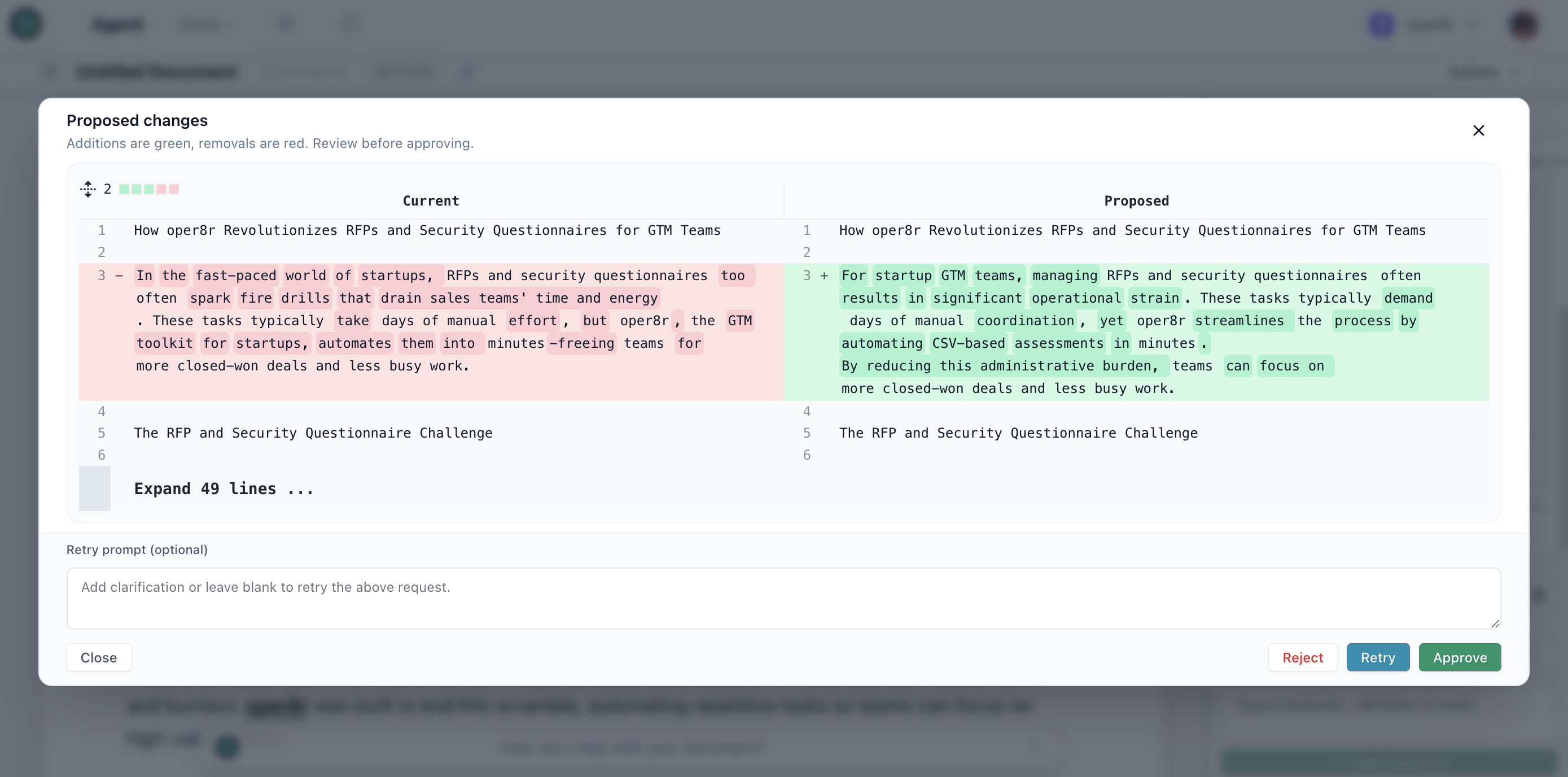
When you select text and send instructions, oper8r creates a task scoped to that selection. It analyzes the selected text along with the full document context, generates a proposed revision, and presents a diff view so you can review the changes before accepting or rejecting them.
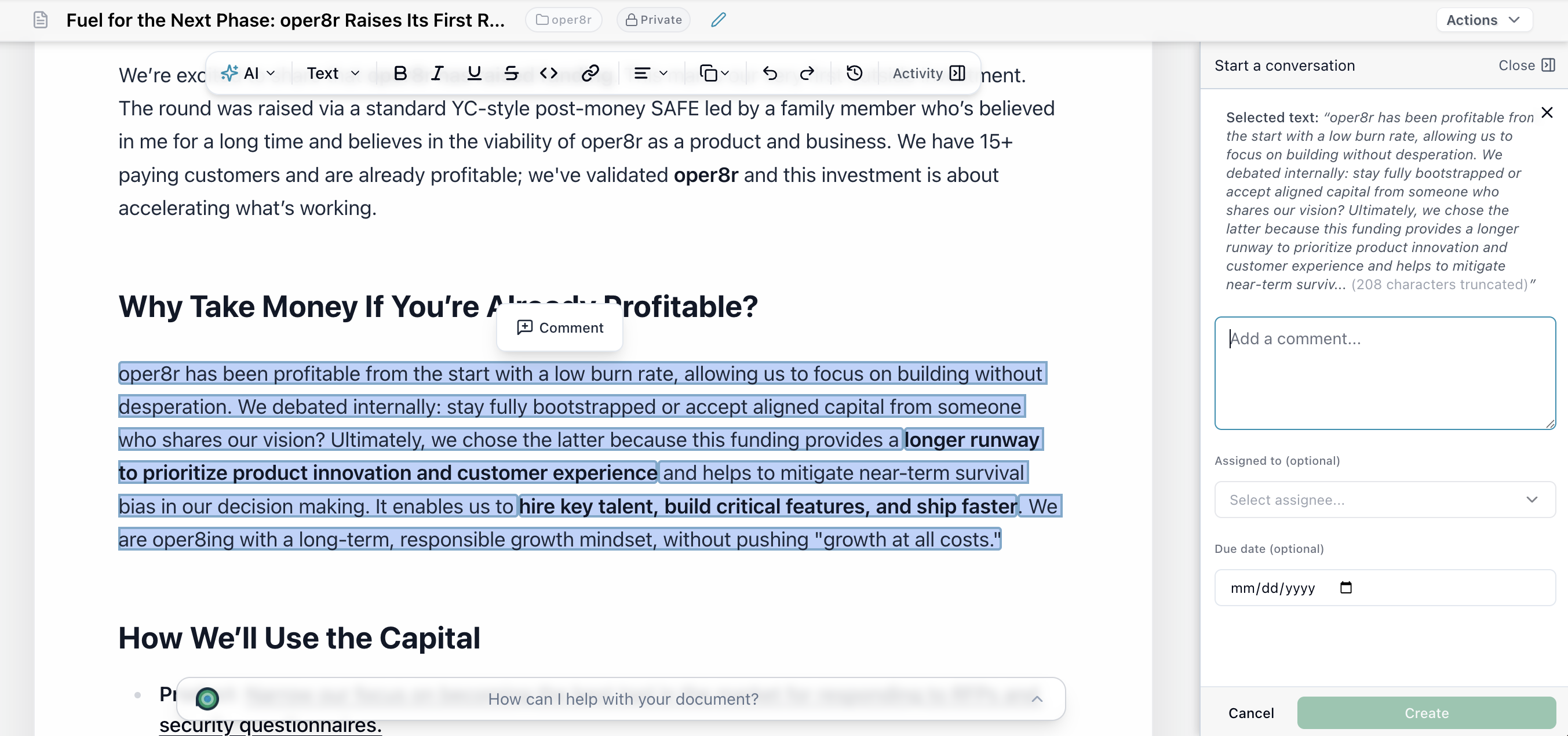
You can also create tasks from text selections for team members to review - see Project Collaboration for details on the full annotation and task workflow.
Document Annotations & Tasks
Select text in the editor to create annotations - tasks, comments, and assignments linked to specific text selections. This enables precise, contextual feedback and collaboration directly within your document.
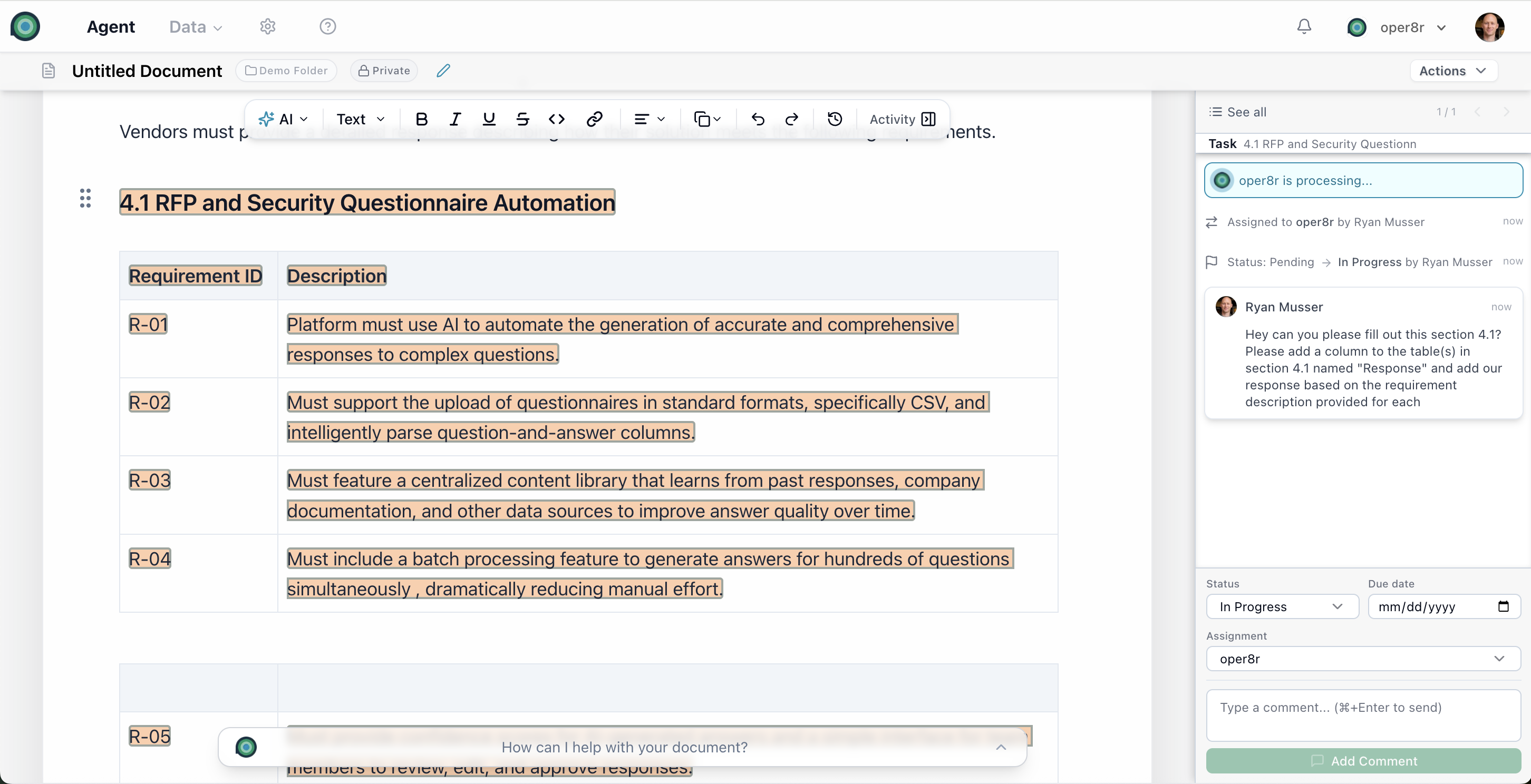
For full details on annotations and task management, see Project Collaboration.
Version History & Snapshots
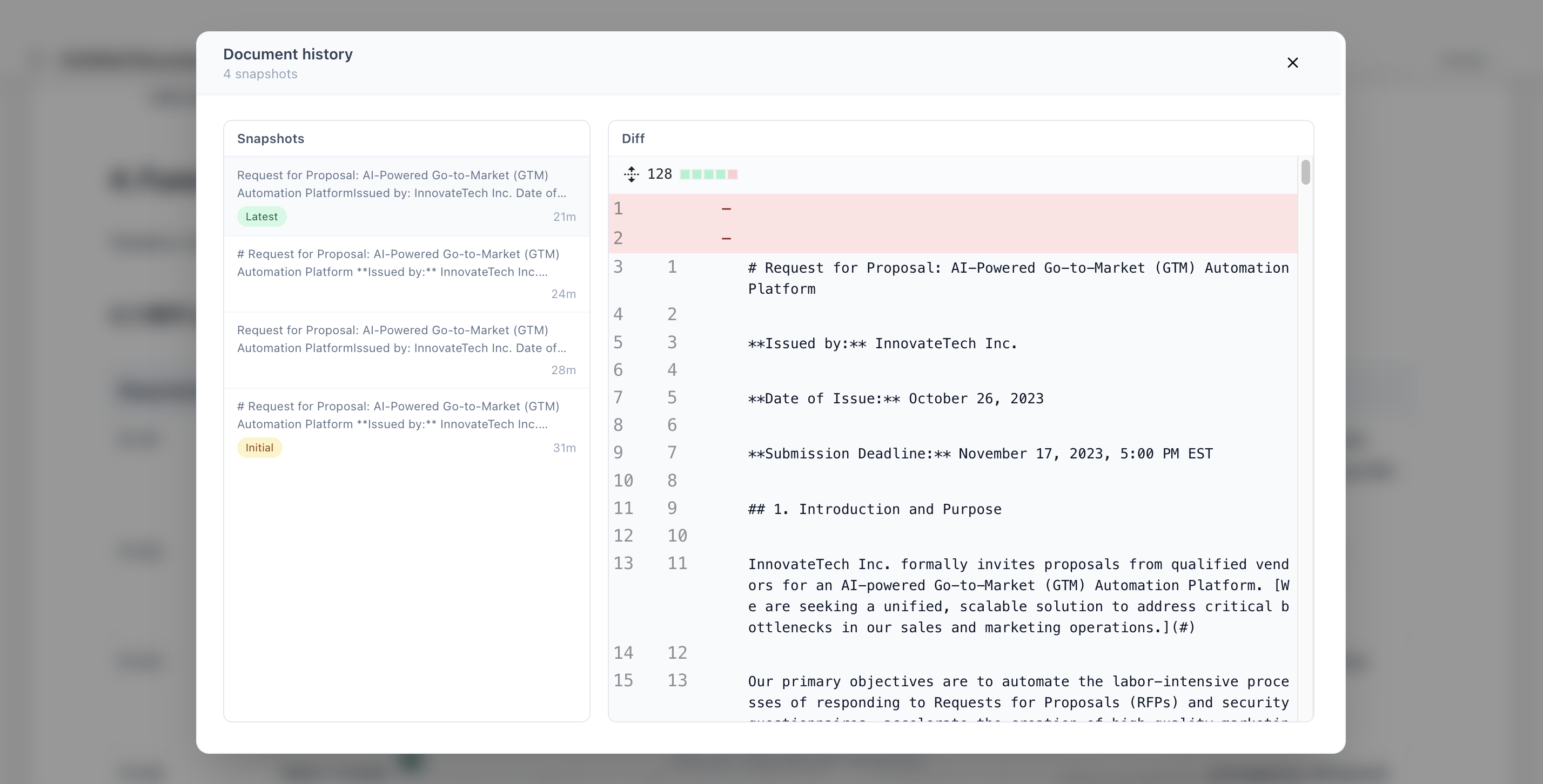
Document sessions maintain version snapshots (up to 20). Access version history to:
- Browse previous versions of your document
- Compare versions with a visual diff view
- Restore previous versions if needed
Content Modification Proposals
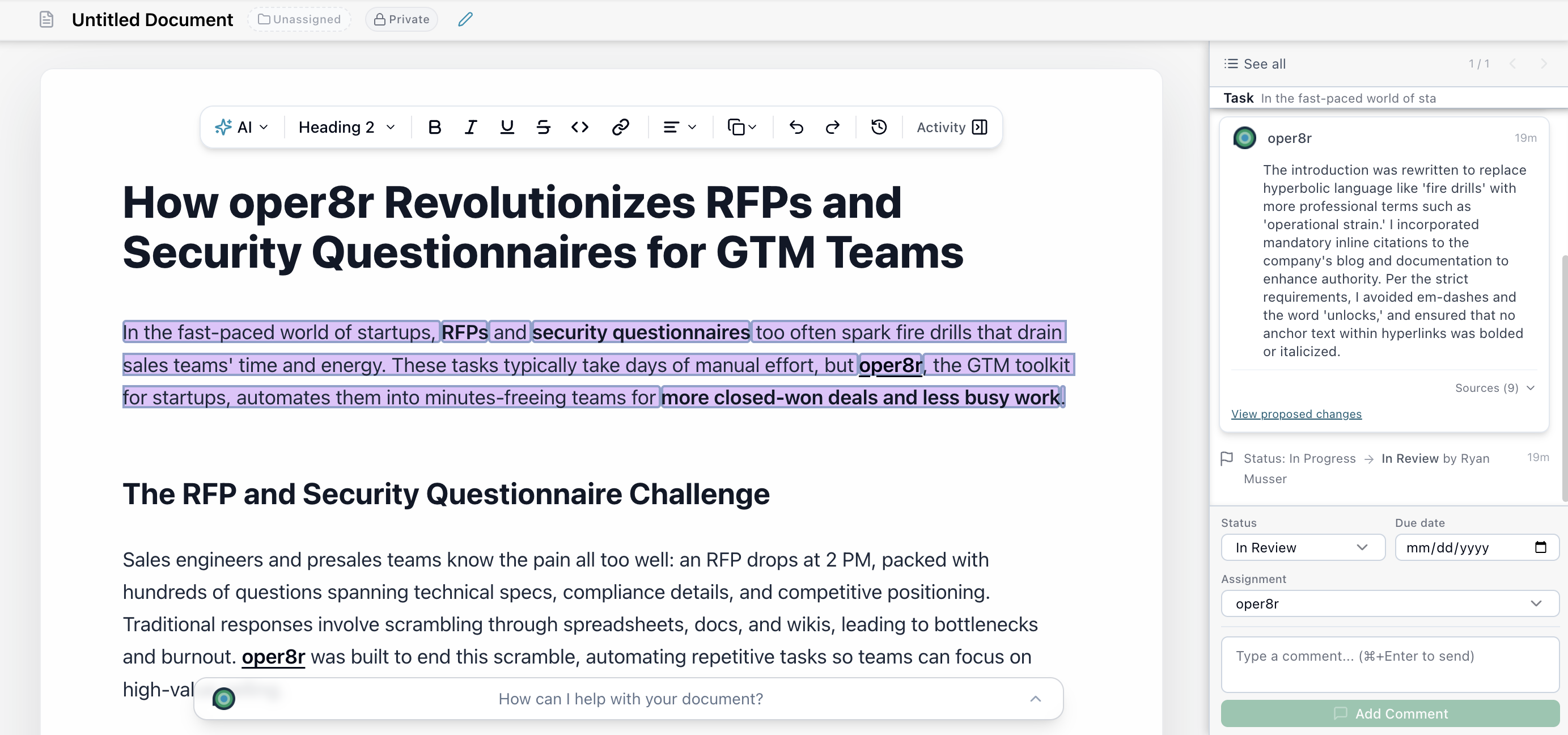
When oper8r processes a document annotation, it can propose changes shown as a diff view. You can review the proposed changes in a side-by-side comparison and accept or reject them - giving you full control over what makes it into the final document.
Getting Better Results
- Define Clear Objectives: Know what you want to achieve and be detailed and specific in your instructions to oper8r
- Avoid over-reliance: Always review and personalize generated content
- Feedback Loop: Provide feedback on generated content to improve future results
- Use Saved Prompts: Create reusable prompts for consistent formatting and tone across your team's documents
- Leverage Your Context Layer: Ensure your Knowledge Library and Company Identity are complete for the best AI-generated content
- Team Training: Ensure team members understand best practices
Just want to talk it out?
We'd be happy to help you get started. The best starting point is usually a live RFP, security questionnaire, or knowledge base that already costs the team time to search, verify, and reuse.